Draft area
The draft area allows you to view, manage, and edit the technical document draft generated by the AI. It is located on the right side of the workspace and updates automatically after each request, so you can always review the latest content.
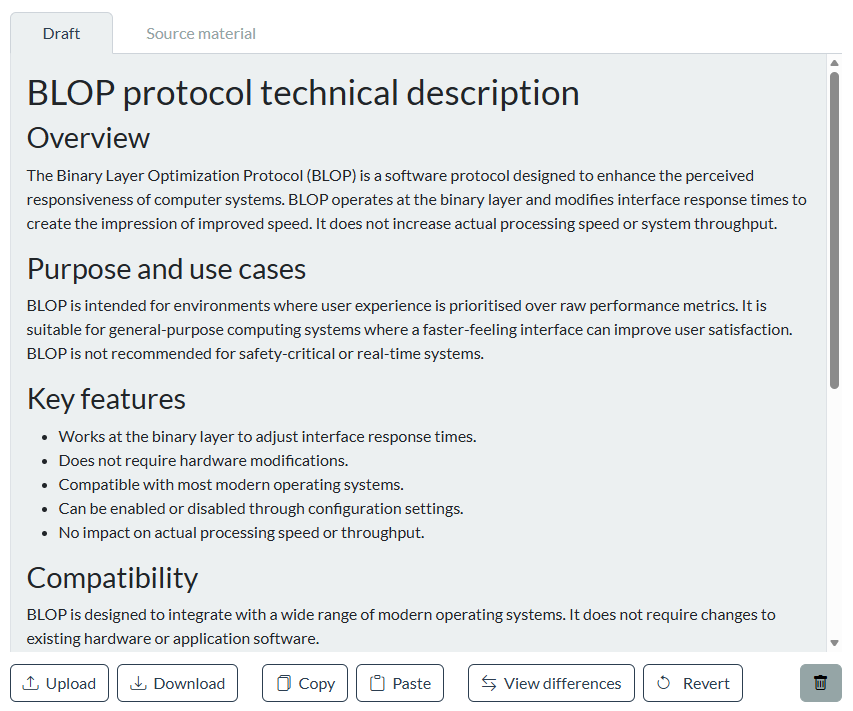
The draft area provides several action buttons at the bottom to help you manage your document:
Actions
- Upload: Import a DOCX, PDF, or ZIP file (HTML and images) as the original draft. The imported file will be the starting point for discussion and editing.
- You can also send a working version of a previously uploaded draft in Markdown format (MD).
- Download: Download the current draft in Markdown (MD) or Microsoft Word (DOCX) format.
- The Markdown format is intended for saving the working version and for later processing.
- The Microsoft Word format is intended for downloading the final draft. If the company has its own template, it will be used when creating the Word file.
- Copy: Copy the draft content to the clipboard. The content is available in both plain text and HTML formats for use in other applications.
- Paste: Paste content from the clipboard to replace the current draft. The pasted content becomes the new draft for further editing.
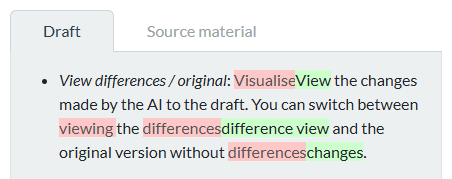
- View differences / original: See the changes made by the AI to the draft. Switch between the changed version and the original version without differences.
- Revert: Undo the previous change made by the AI. This restores the draft to its earlier state.
Warning
Clearing will permanently remove the current draft, discussion history with the AI, and, if requested, the source material and knowledge base. This action cannot be undone.
- Trashcan icon: Clear the current draft and the discussion history with the AI. Optionally, you can clear also the contents of the source material and the knowledge base.