Getting started
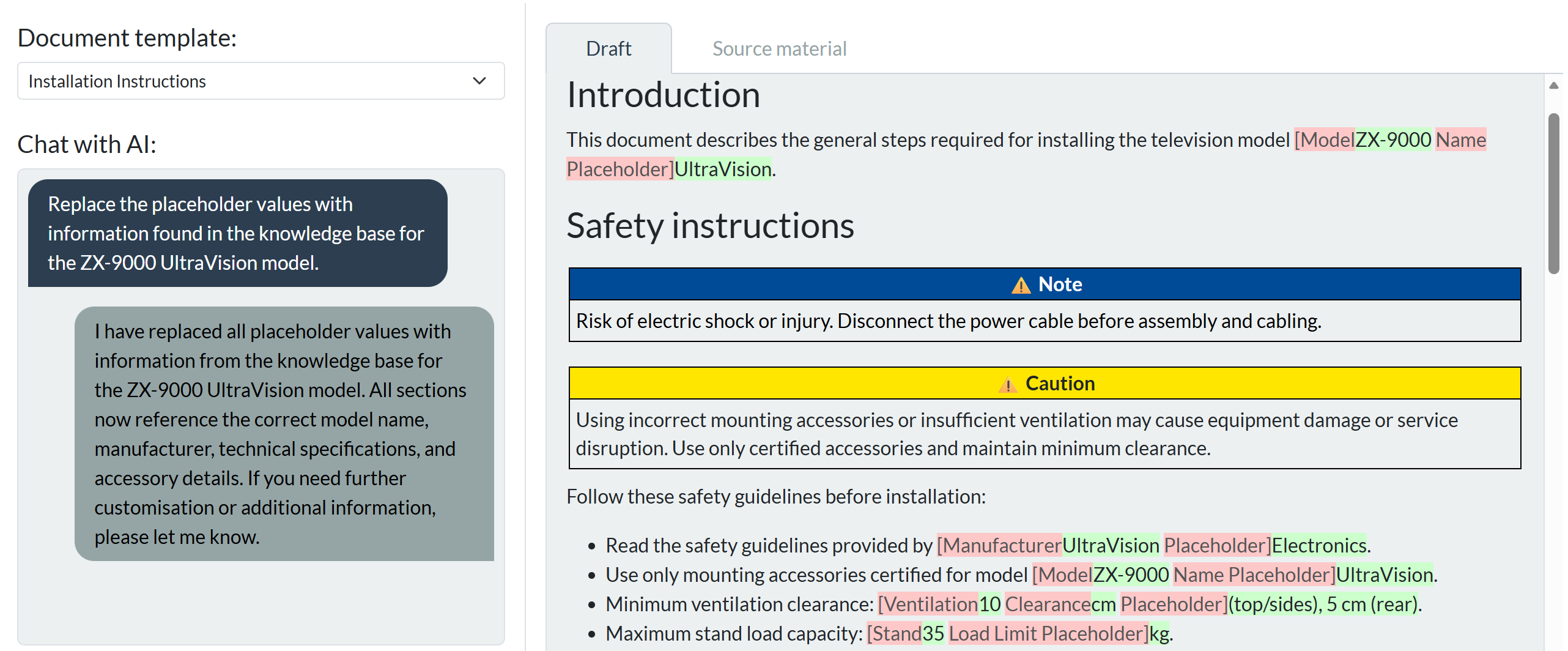
Kumite Help provides an interface for creating and editing documentation drafts with AI assistance. The workspace is divided into four main sections: the Discussion area, the Draft area, the Source material tab, and the Knowledge base tab.
Discussion area
The discussion area is on the left side of the workspace. Use the discussion area to communicate with the AI. You can perform the following actions:
- Ask the AI to create, edit, or review documentation drafts.
- Request suggestions or clarifications.
- Discuss contents, specific requirements or constraints for your documentation.
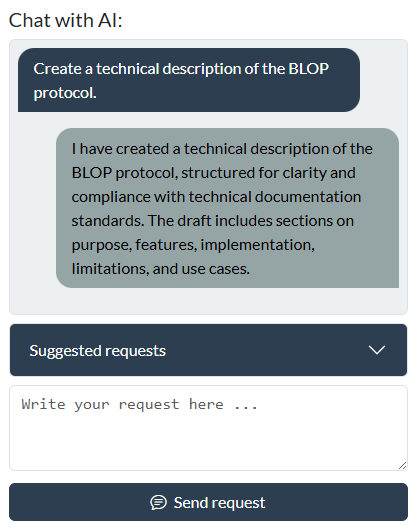
For more information about the discussion feature, refer to Chat with AI.
Draft area
The draft area is on the right side of the workspace. This section displays the AI-generated draft based on your requests.
In the draft area, you can perform the following actions:
- Review the draft content as it is updated.
- Paste or import an existing document for further drafting and discussion.
- Copy or export the draft for external use.
- Provide feedback or request changes through the discussion area.
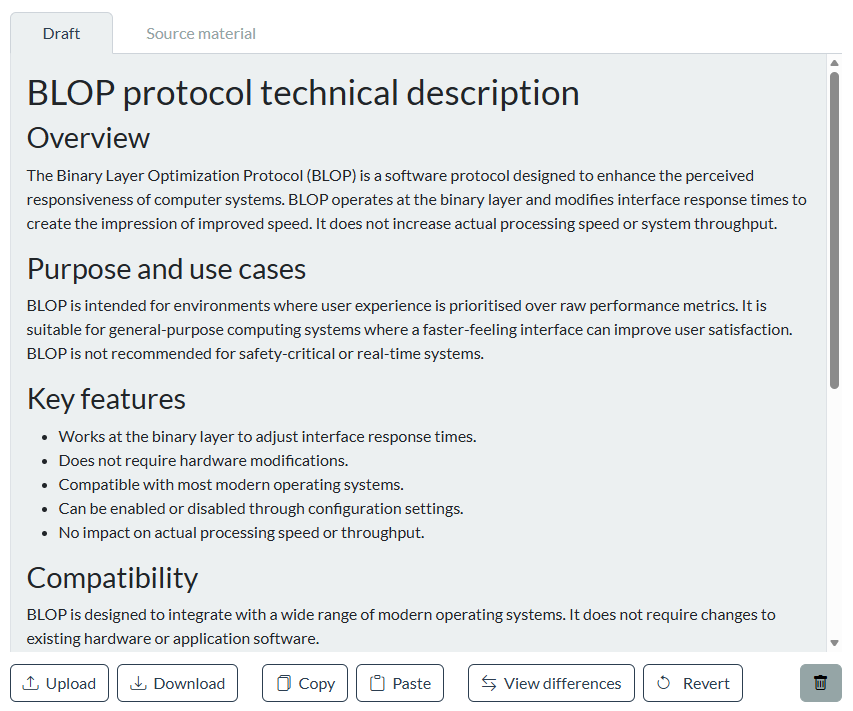
For more information about the draft area, refer to Draft Area.
Source material
The Source material tab is available on the right side of the workspace, next to the Draft tab. Use this tab to enter additional information or reference material for the AI. Providing relevant source material helps the AI to better understand your requirements and produce more accurate drafts.
Note
The quality and accuracy of the AI-generated draft improves when you provide clear and relevant source material.
In the source material tab, you can:
- Provide the draft’s purpose, objectives and guidance.
- Enter relevant background information, requirements, or examples.
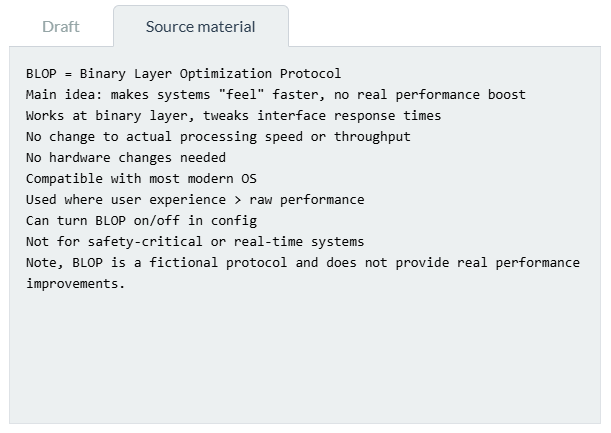
For more information about the source material, refer to Source material.
Knowledge base
The Knowledge base tab is available on the right side of the workspace, next to the Source material tab. Use this tab to provide source documents or reference text for the current session. The AI analyses the content and builds a structured knowledge model. This helps the AI understand your material, answer questions more accurately, and generate consistent content throughout the session.
The AI can also search the organisation's document knowledge base, which contains approved reference documents available across sessions when additional information is needed.
For more information about the knowledge base, refer to Knowledge base.